Single Sign-On (SSO) SAML: Integrating with Google
Requirements
- Admin access to create the app in your Identity Provider's Admin Console
Setup instructions
Start the integration within Managed Studio
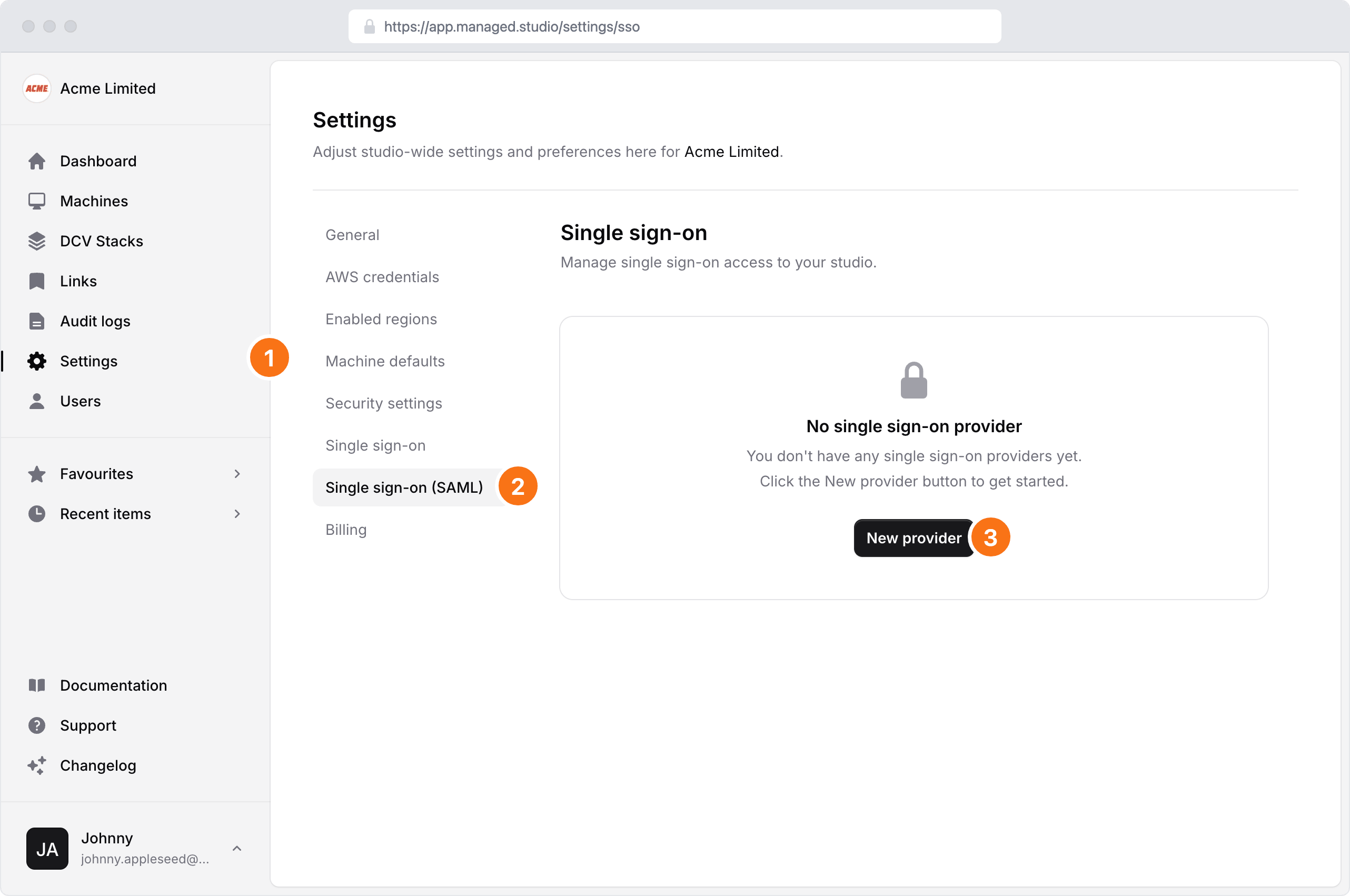
- Navigate to the Settings page
- Click Single sign-on (SAML)
- Click the New provider button
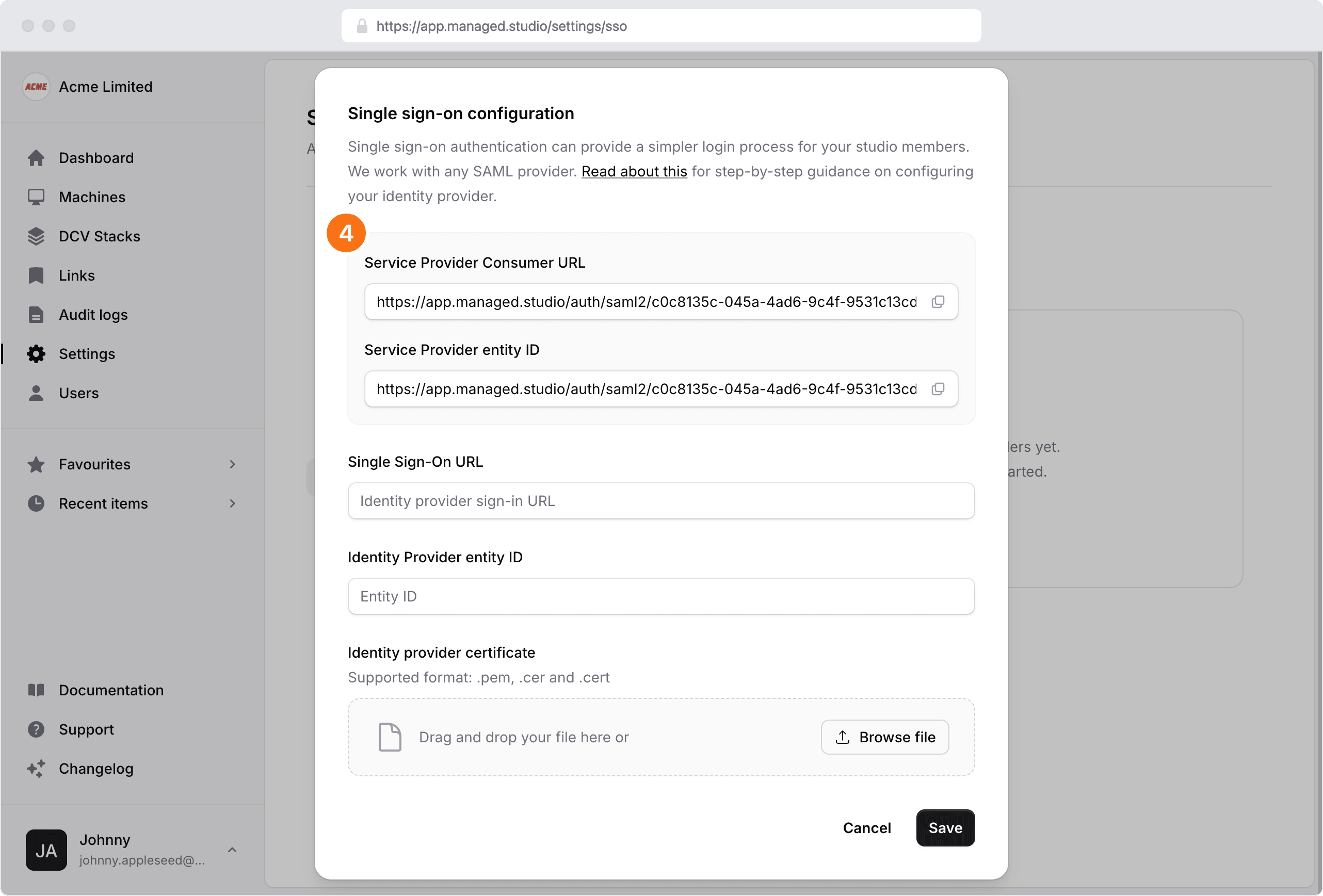
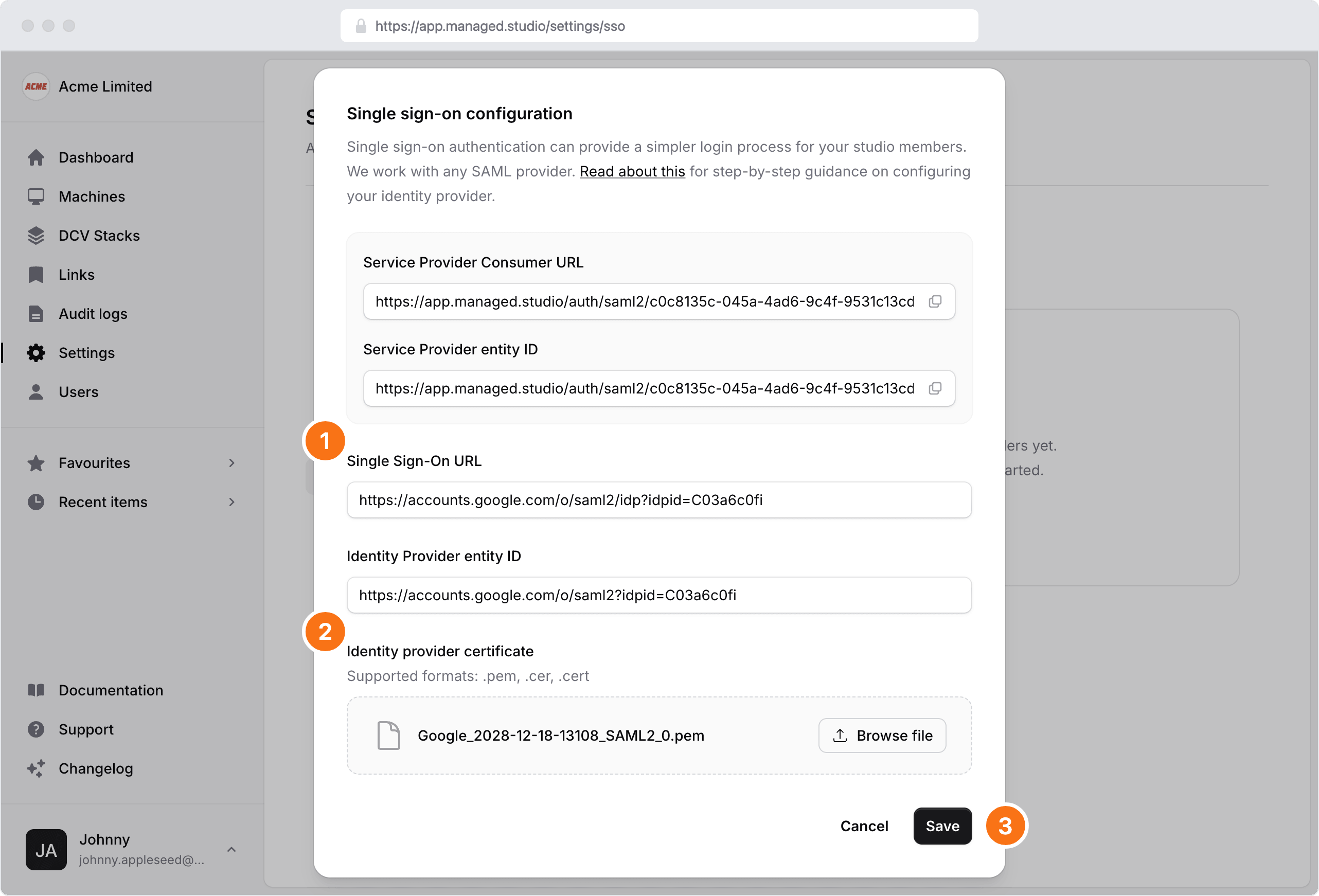
- Make a note of the following two fields from the Single sign-on configuration modal to populate your IdP Admin Console with in the next step:
- Service Provider Consumer URL
- Service Provider entity ID
Create the Managed Studio app within the Google Workspace Admin Console
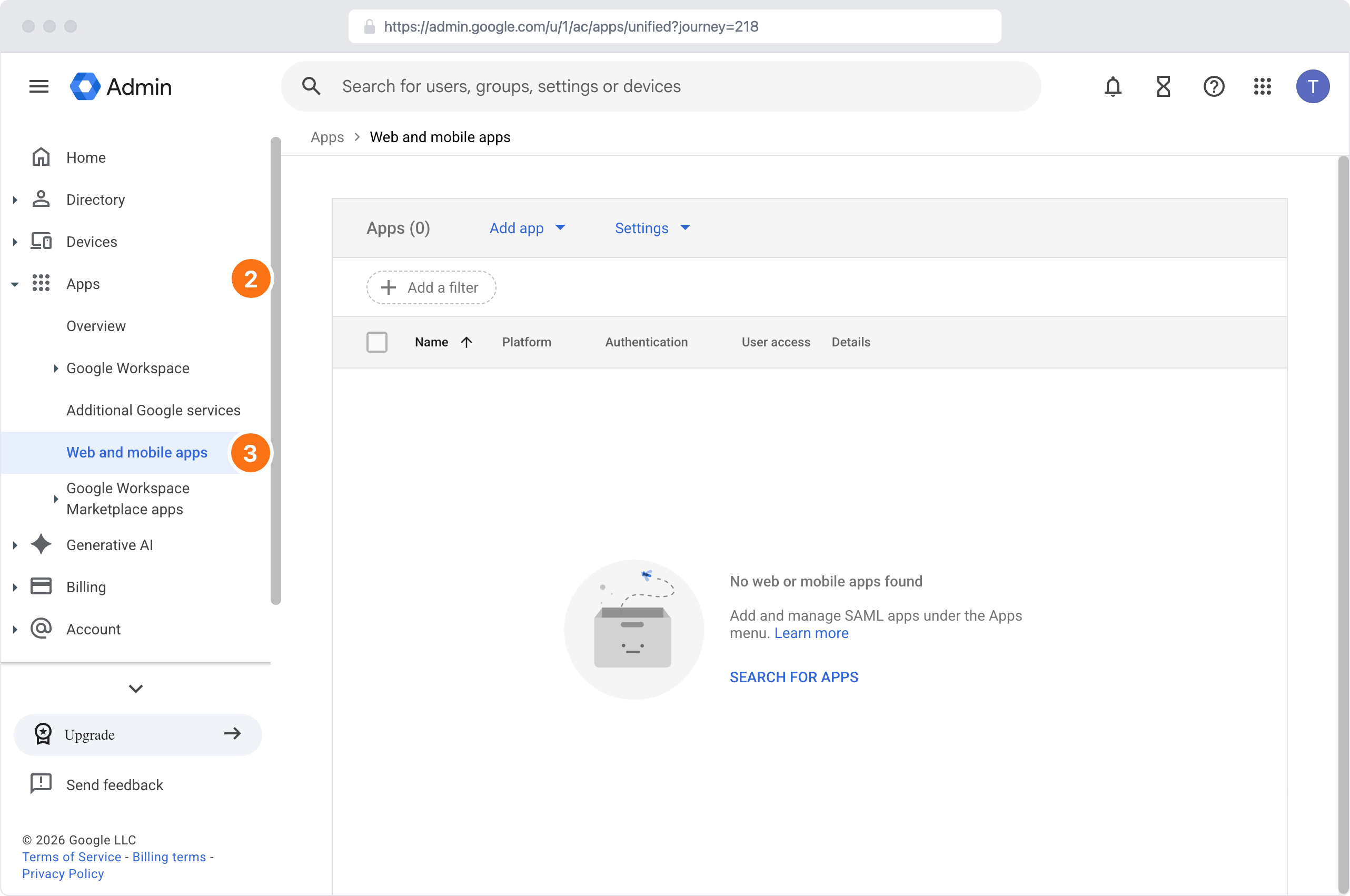
- Sign in to the Google Workspace Admin Console
- In the left navigation bar, click Apps
- Click Web and mobile apps from the list
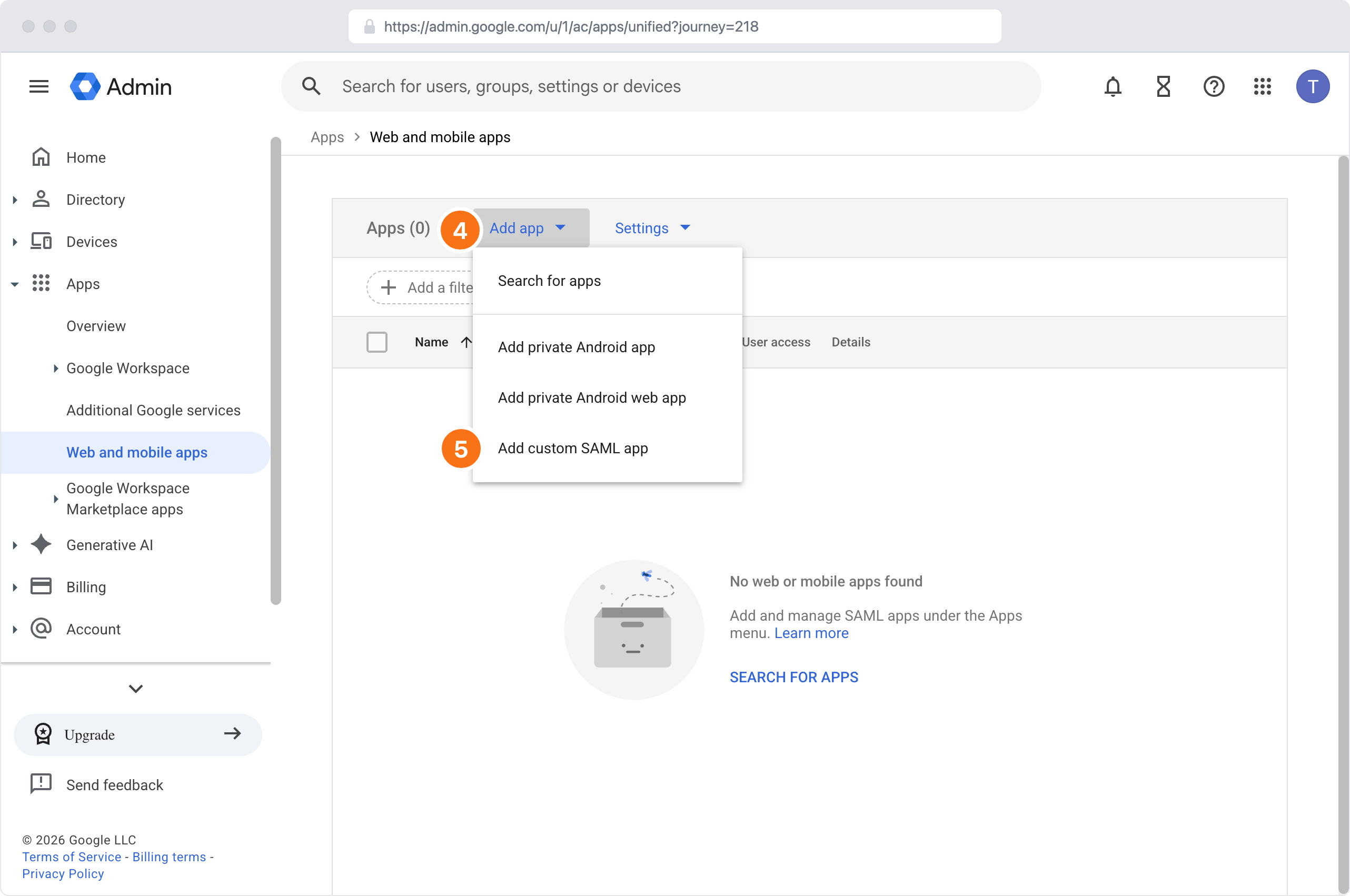
- Click the Add app button
- Choose Add custom SAML app from the menu
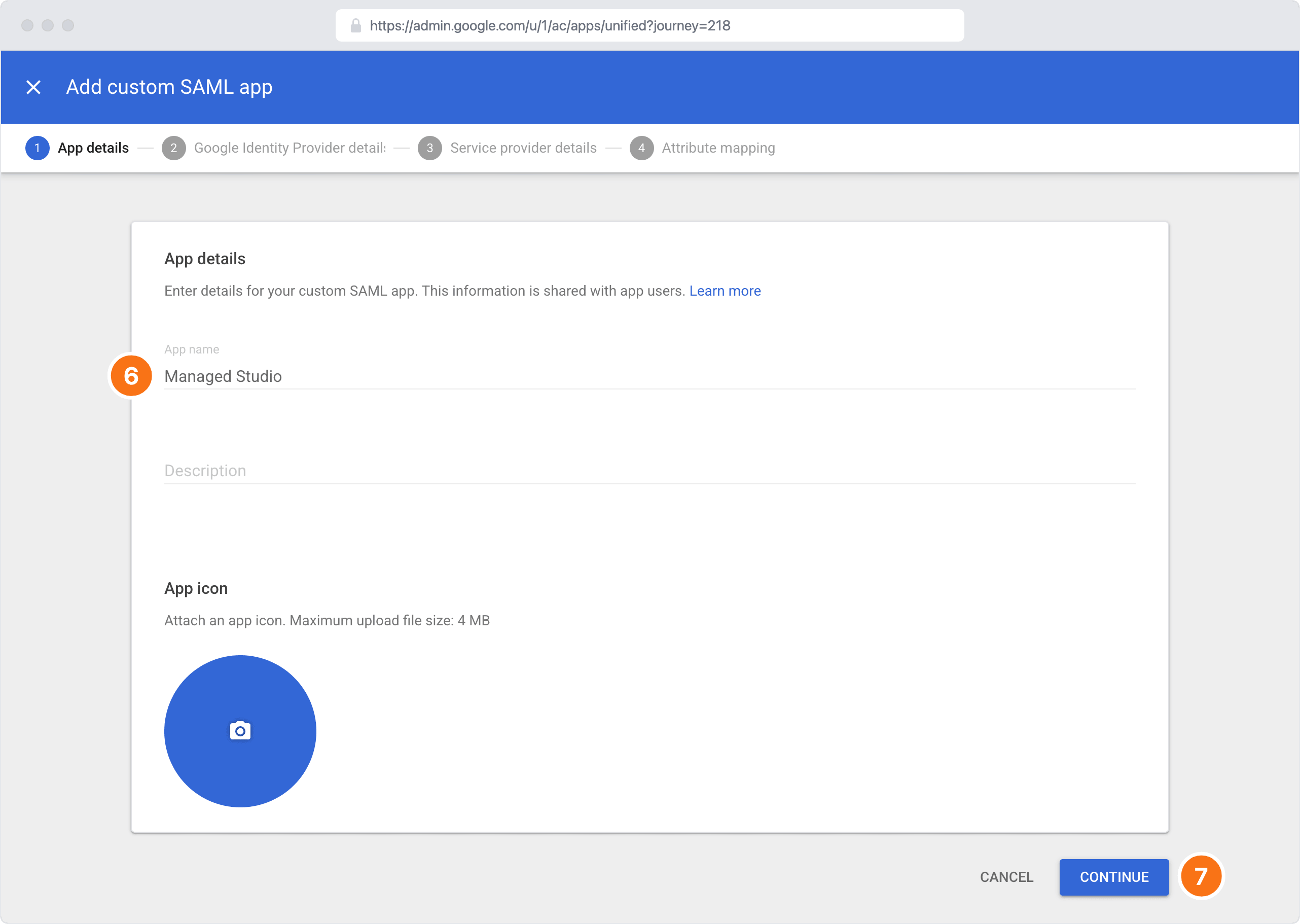
- Enter a Name for your application
- Click Continue
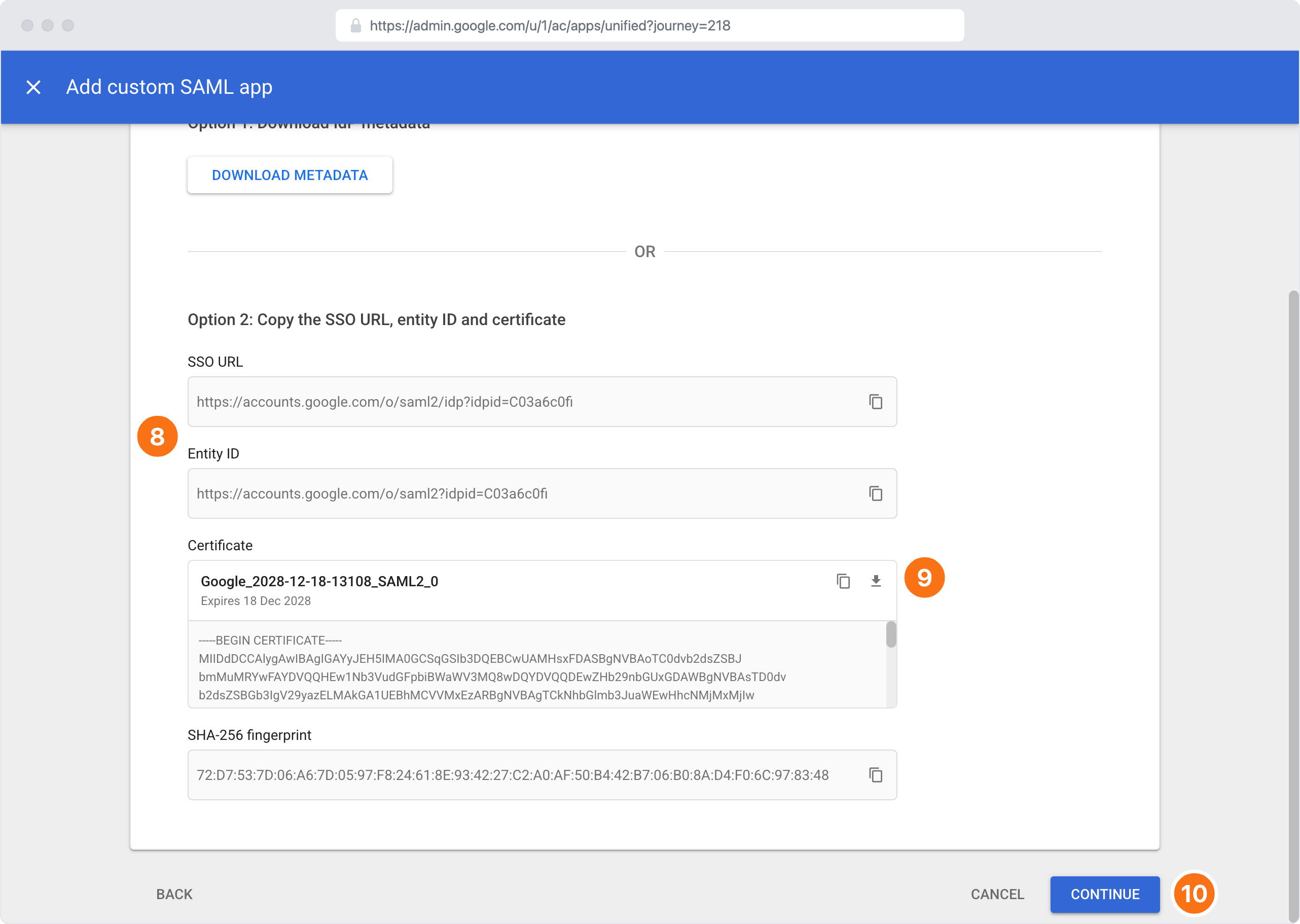
- Copy the values from the following two fields. You will need to paste them into the Managed Studio SSO Integration modal in the next step:
- SSO URL
- Entity ID
- Click the Download button for the Certificate
- Click Continue
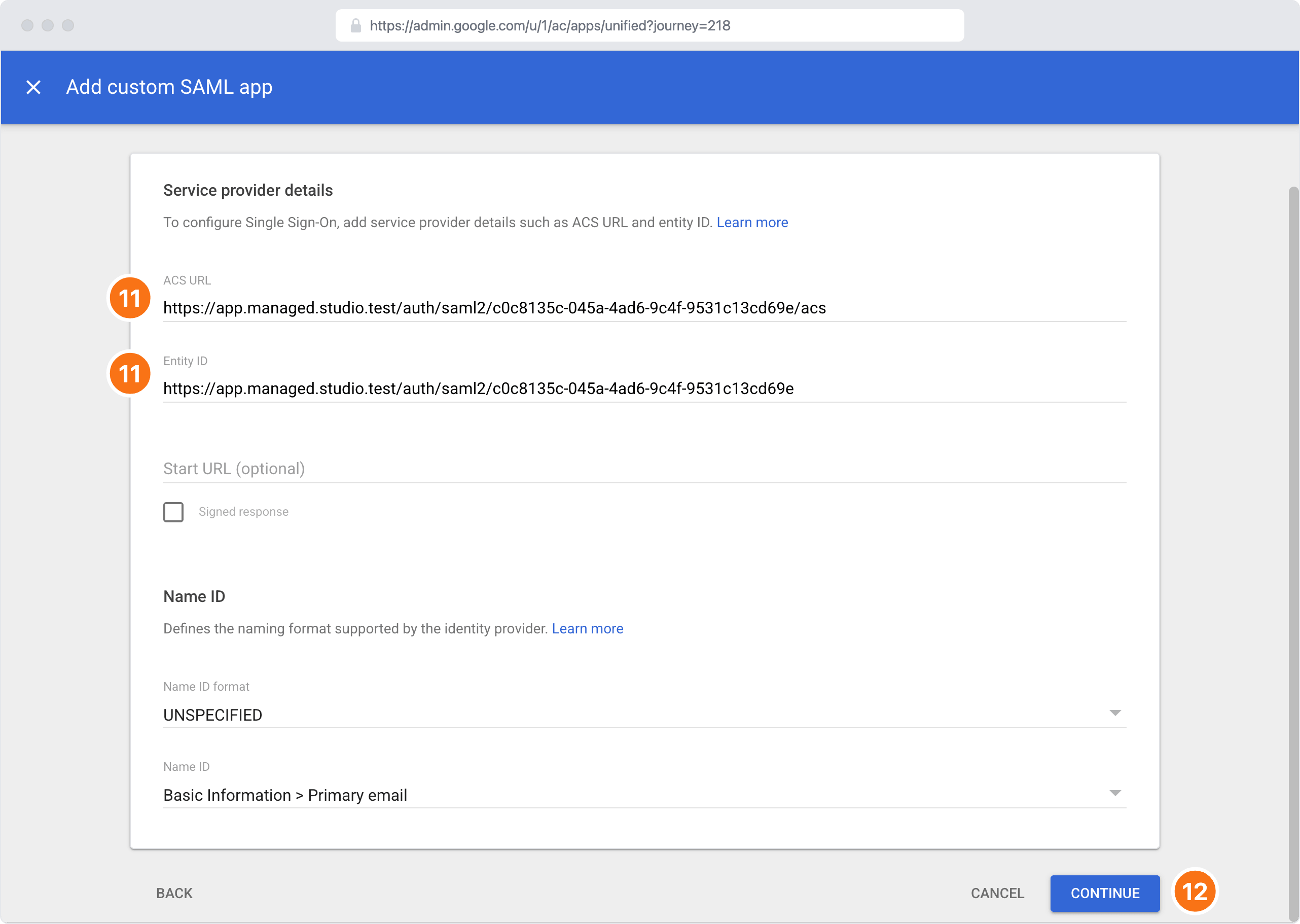
- Enter the following values from earlier:
- ASC URL: Service Provider Consumer URL value from Managed Studio SSO Integration tab
- Entity ID: Service Provider entity ID value from Managed Studio SSO Integration tab
- Click Continue
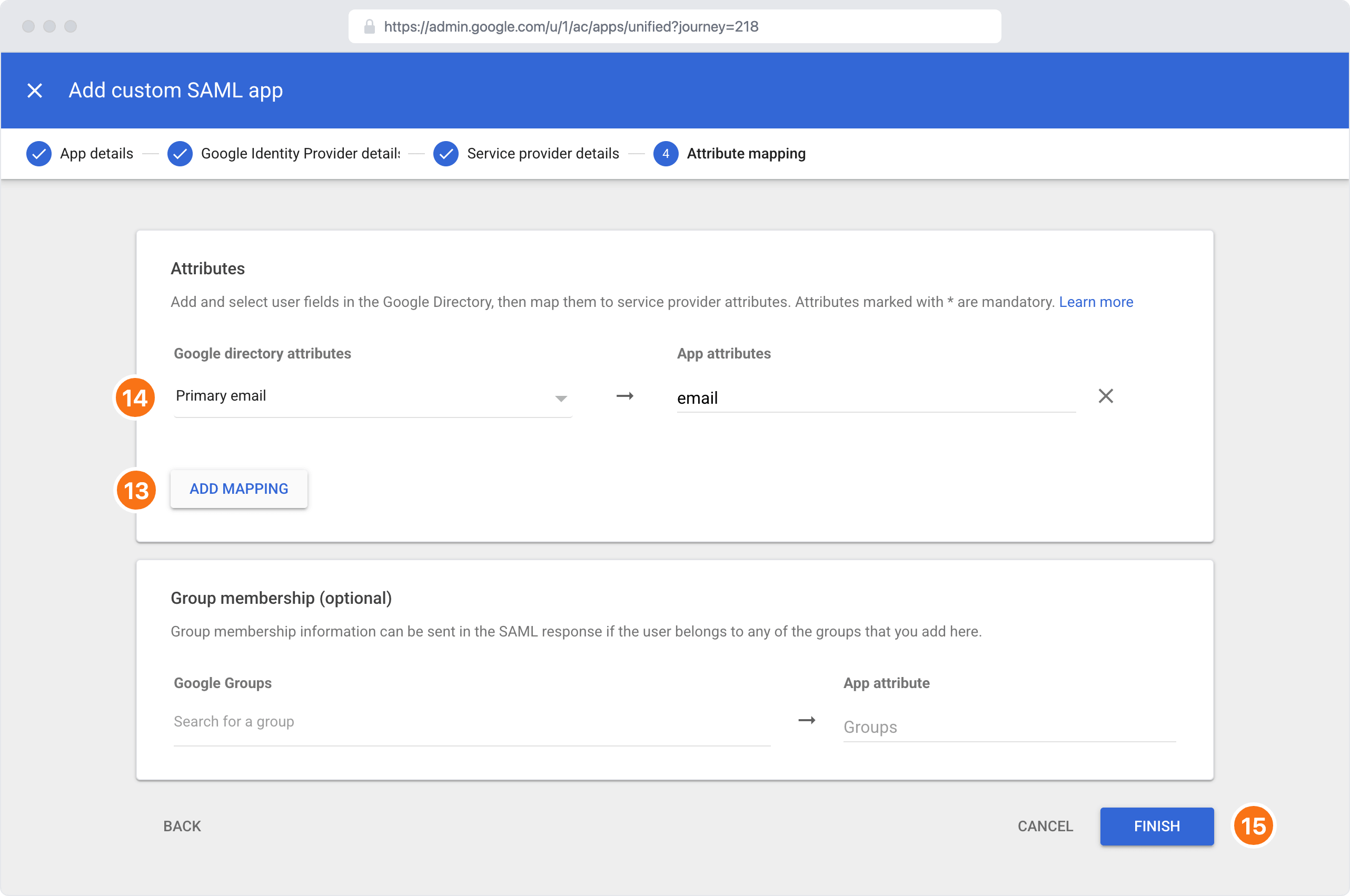
- Click the Add mapping button
- Configure the following mapping:
- Google Directory attributes: Primary email
- App attributes: email
- Click Finish
Finish the integration within the Managed Studio SSO Integration modal
- Enter the two fields from the Google Workspace Admin Console into the Managed Studio SSO Integration modal:
- Single Sign-On URL: SSO URL from the Google Workspace Admin Console
- Identity Provider entity ID: Entity ID from the Google Workspace Admin Console
- Upload the Identity provider certificate
- Click Save
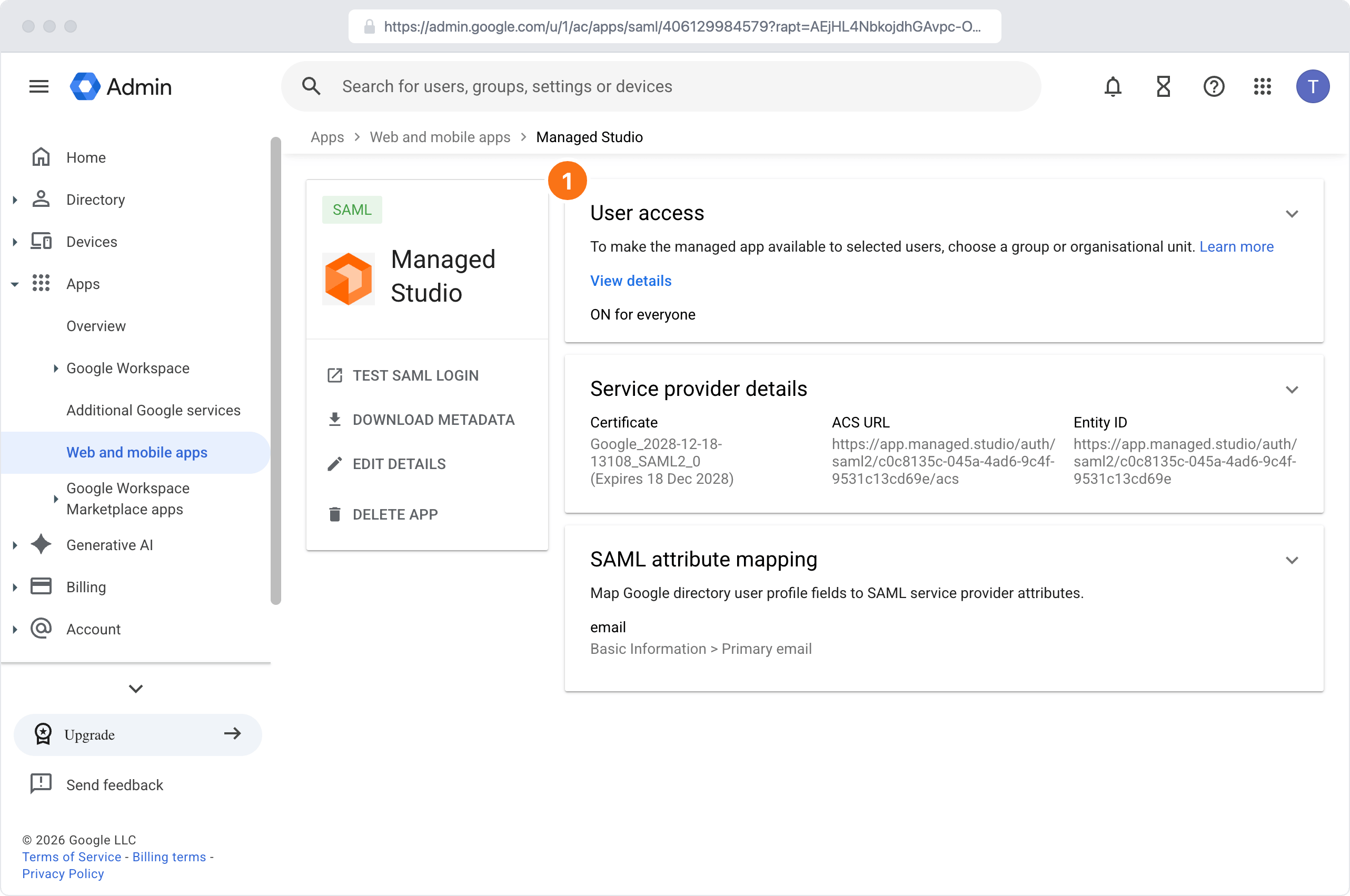
Enable user access to your app within the Google Workspace Admin Console
You will need to make the managed app available to all users, specific groups or organizational units before the users can authenticate within Managed Studio.
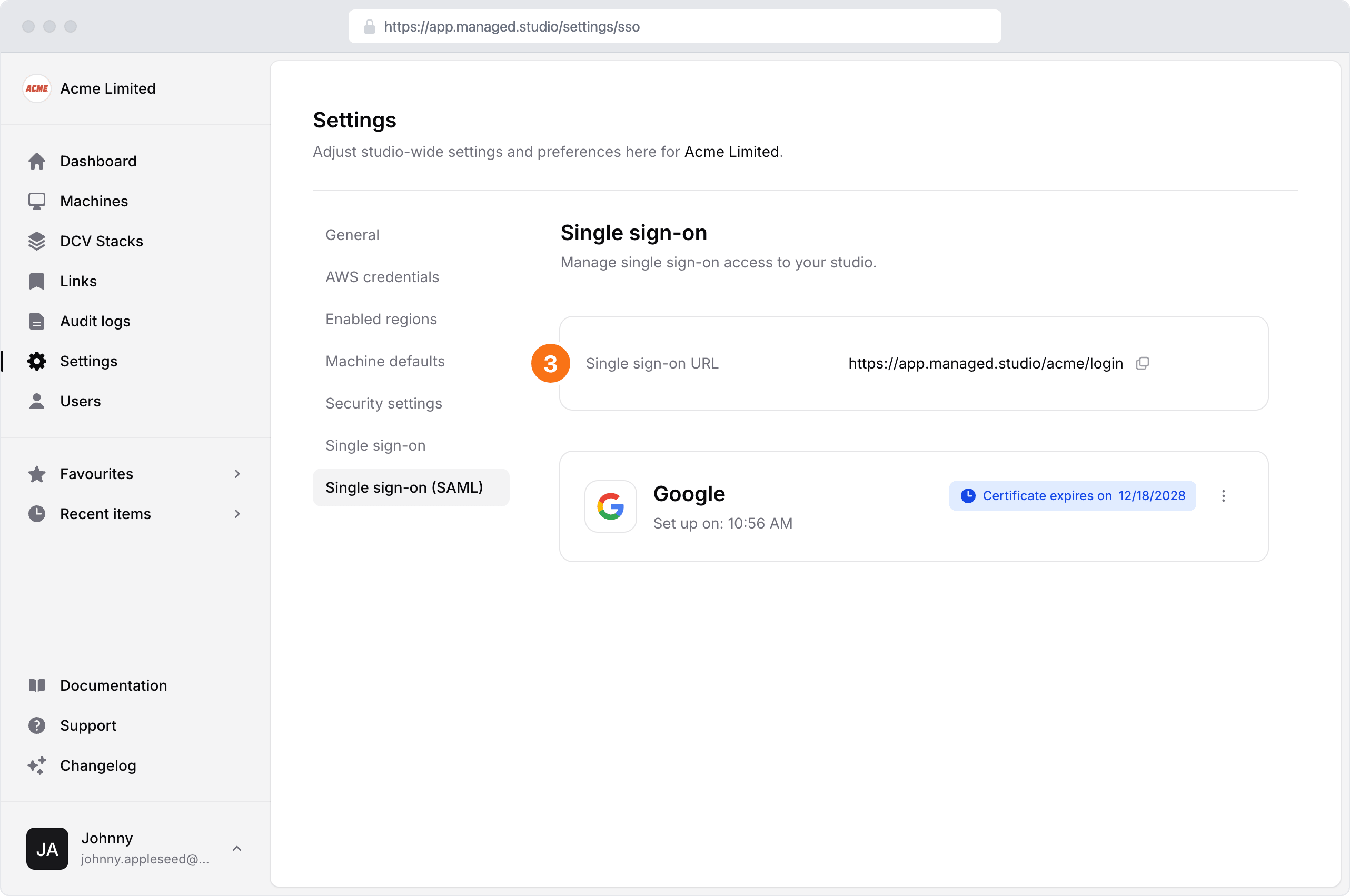
Finding your Single sign-on URL
- Navigate to the Settings page
- Click Single sign-on (SAML)
- Your Single sign-on URL is shown at the top of the page
Next steps
- Sign in using your Single sign-on URL to confirm the integration works
- Verify your email domains and choose whether single sign-on is optional or required for each one. See Single Sign-On (SSO) SAML: Configure one or more email domains for your studio
- Let your users know how to sign in. See Single Sign-On (SSO) SAML: Signing in